GTRK / CLIENT + CLI
Talk your filminto shape
Leave behind frame-by-frame pushing and pulling on a timeline. Tell the client's built-in AI what you want, or say it in your own AI agent; watch the project take shape in the client, and export to CapCut or Premiere whenever you want the fine cut.
- Windows client · built-in AI
- Cross-platform CLI
- MIT open source
- Sign in to start, free credits included
Our partners & ecosystem
 HypitOur composite layer adoptsHypit's SVML: every layer editable.
 PenguinOur built-in AI editing assistantruns on Penguin's Harness.
 cutto.aiTechnical partner on smart B-rolland our conversational agent base.
 PixMindGitruck Cloud's central supplierof generative AI content.
 DapaidangProvides Gitruck Cloud upscaling,interpolation and restoration.
 WondershareVirbo × Gitruck Cloud: a strategicpartnership on long-to-short cuts.
 DJIGitruck Cloud powers smart footagesequencing in DJI's creator client.
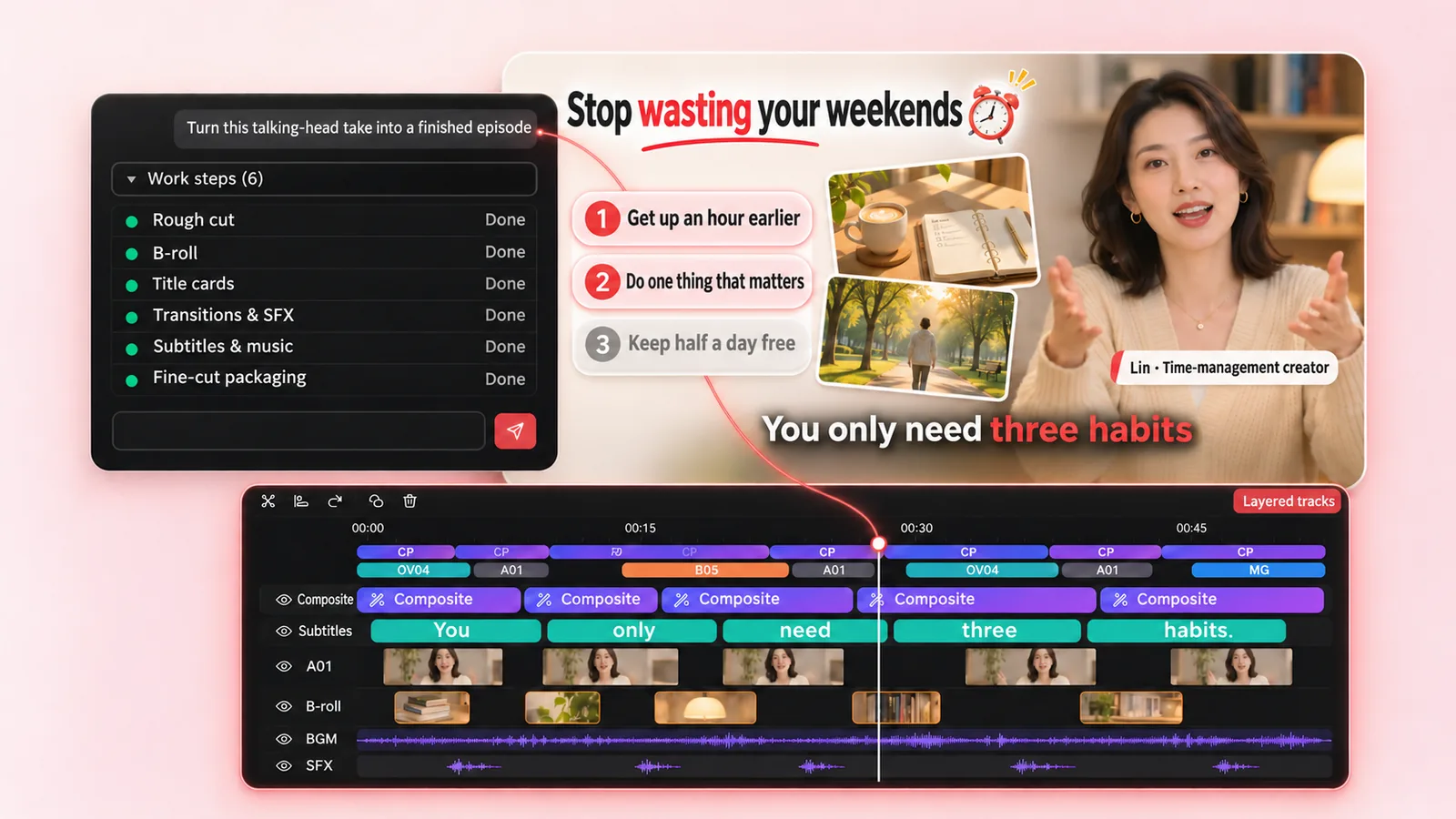
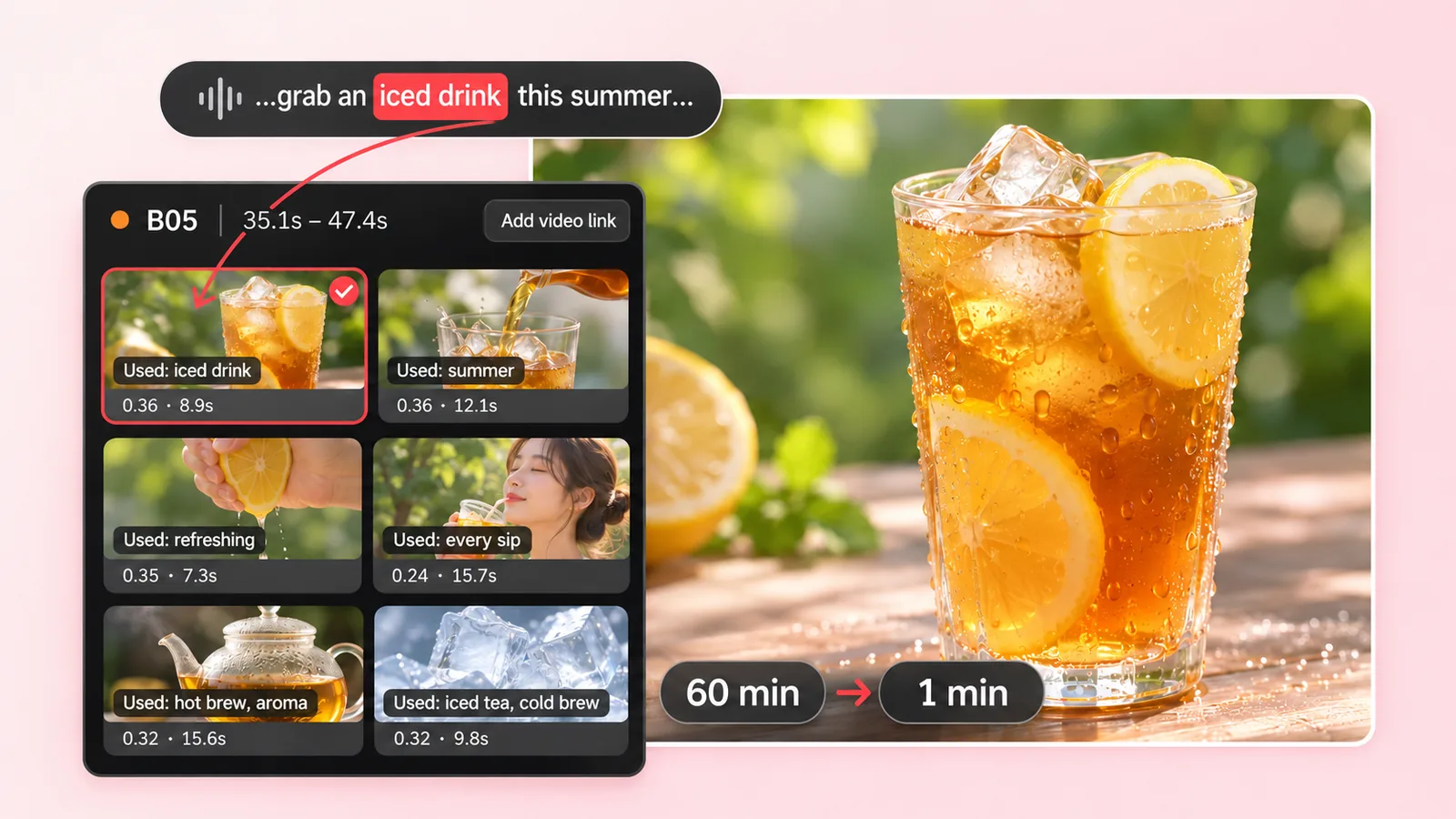
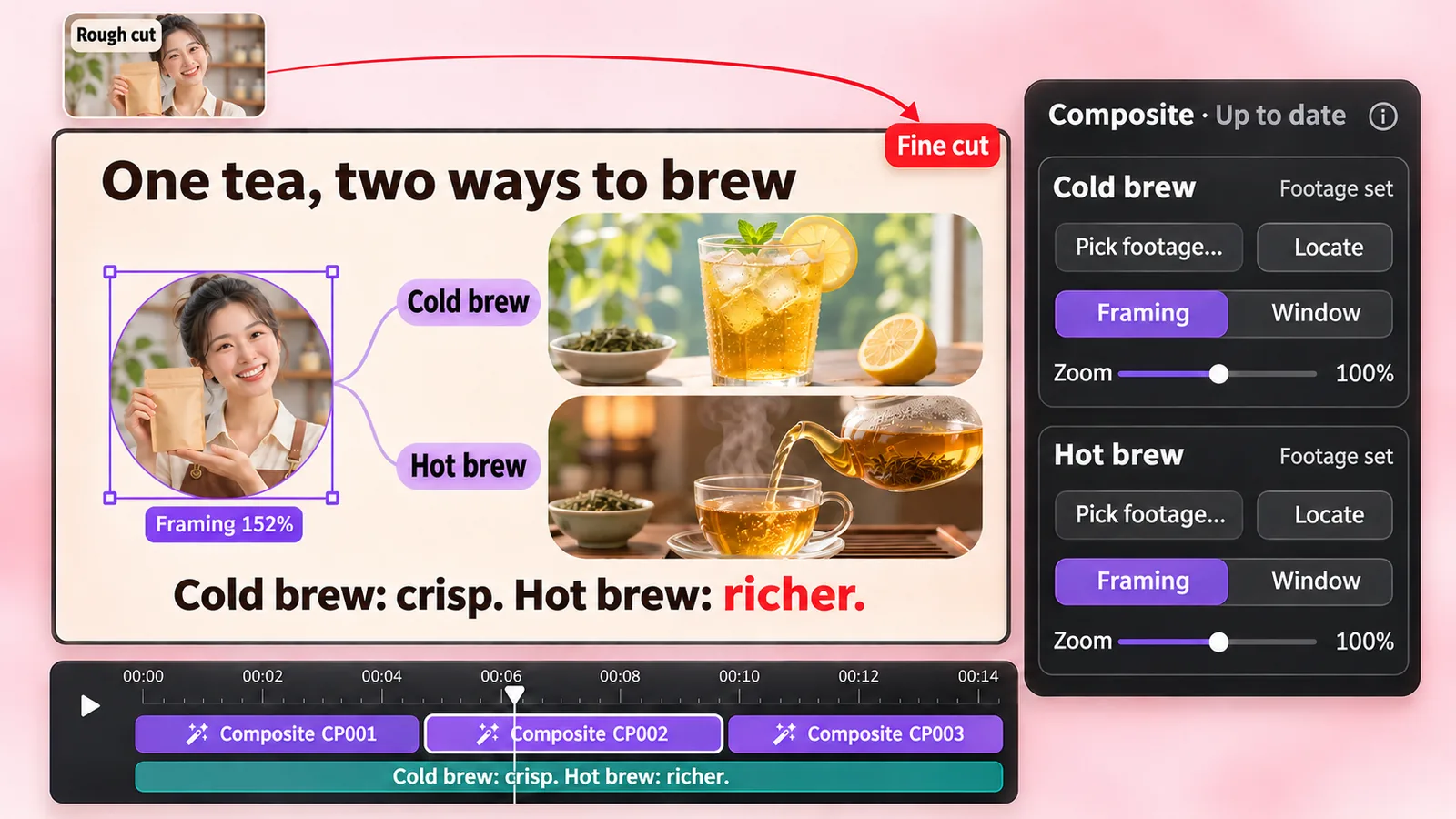
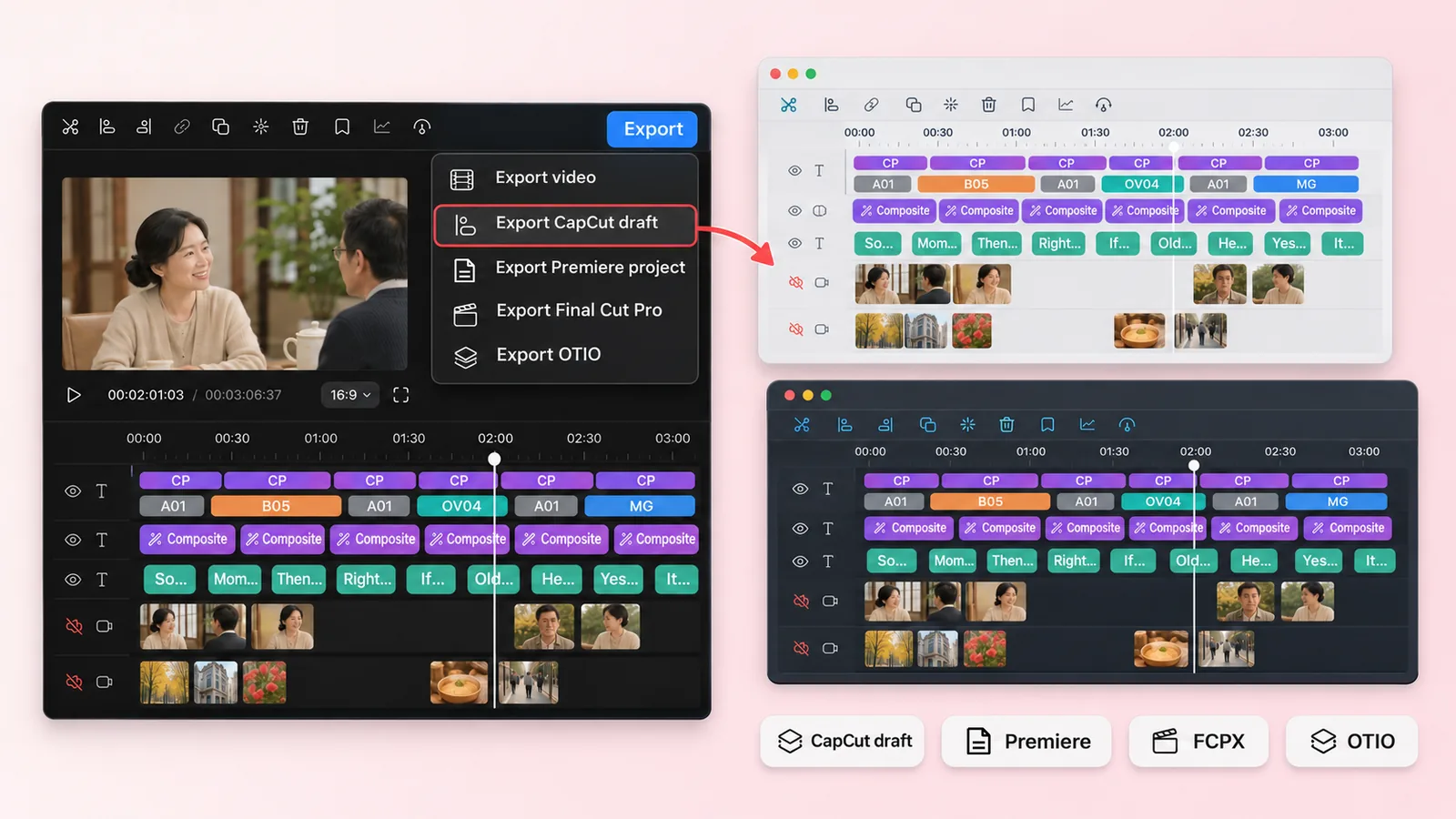
Full edit projects, generated end to endState the brief once. The agent runs the rough cut, B-roll, title cards, transitions, sound effects, packaging, subtitles and music in one pass and hands back a layered, broadcast-grade project that opens straight in CapCut, Premiere, DaVinci Resolve and other pro editors.
Pipeline overviewThe whole path in two and a half minutes: ask in the agent, watch the project form in the client, export for the fine cut.
01 / TALKING-HEAD EDITING
From raw footage to a finished piece
You do the talking; it does the repetitive work
You talked to the camera. The footage has retakes, slips and long pauses. This workflow turns it into an editing project you can open and keep refining: rough cut, pictures, title cards, subtitles, fine-cut packaging, every step still editable on the timeline.
How the chain works
- Rough cut: remove filler, retakes and long pauses; re-time the rhythm from the script's punctuation
- Picture: split into beats, lay B-roll, stack motion graphics, add music
- Finish and deliver: subtitles, a fine-cut packaging layer on the stretches worth it, then covers or a CapCut / Premiere export
Open any example to compare the raw footage with the finished piece.
02 / LONG TO SHORT
Cut long footage into highlight shorts
It listens to the whole thing for you
Podcasts, panels, interviews, stream replays: hours of footage with a few moments worth posting on their own. It listens to everything, cuts each topic worth publishing into its own short project, and runs landscape and portrait versions.

Highlight 1 · 16:9 · 0:45
Highlight 1 · 16:9 · 0:41
Highlight 1 · 16:9 · 4:31
How the chain works
03 / NARRATION
Explain something long to an audience
Long-to-short lets the footage speak; narration lets you speak for it
Film, games, restaurant visits, travel, essays: give it one long piece of footage or a whole folder, get back a narrated project. It watches the footage, writes the script, asks you to confirm once, then voice-over, pictures, title cards, music and subtitles run automatically.
How the chain works
- Watch the footage: index it and understand what each clip shows
- Write and confirm once: script, aspect ratio, voice, music, subtitle style
- Voice-over, pictures, title cards, music and subtitles run automatically
04 / AI ANIMATED STORIES
Give every scene in your story a picture
From script and voiceover to a complete animated story
Bring a script and voiceover. AI breaks the story into shots; the animation workbench anchors your characters and generates the images. Review your picks, add camera moves, align them to the narration, then layer graphics and subtitles. Finish with an editable project for further refinement in Jianying.
 REF
REF ✓
✓ ✓
✓How the chain works
05 / ONE COMPLETE RUN
A high-quality mid-length video in two hours
Six steps to a finished piece, ending with covers exported in three platform sizes. Watch this one and you know what the whole pipeline looks like on a real project.


THE DETAILS
Every step editable, every layer on the timeline
What you get is never just an mp4. It is an editable project: pictures, title cards, B-roll, motion graphics, fine-cut packaging, transitions, sound effects and subtitles on separate tracks. Every change the AI makes refreshes in the client.
- 18 transitionsCapCutPr
 CapCutPrDissolve
 CapCutPrDip to black
 CapCutPrWipe
 CapCutPush
 CapCutIris
 Whip pan
Transitions
Dissolve, dip to black, push, whip pan… 18 transitions, fetched from the cloud on demand. Six export as native CapCut transitions, four of them native in Premiere too, so they stay editable there.
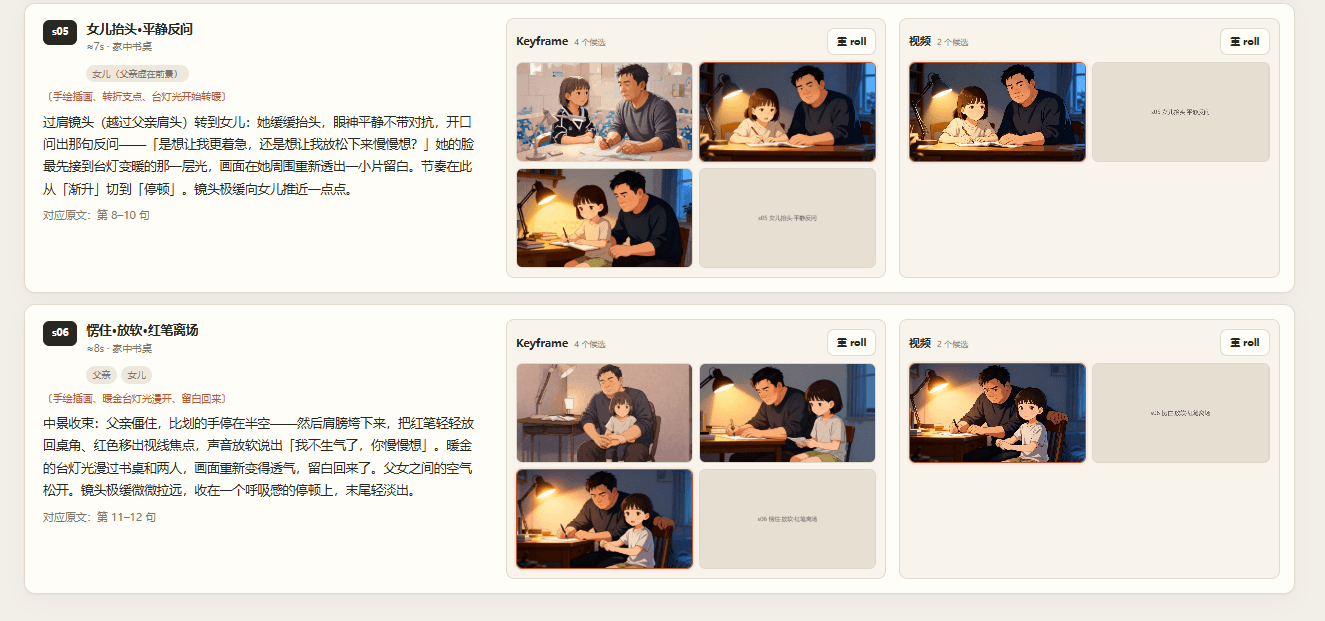
AI scene animation
Passages that call for a scene animation become four-part storyboards automatically. Feed them to the local desk or any AI video platform, then drop the shots back on the track.
TOOLBOX
One input, one output
Thirty-plus single-purpose tools beyond the finished piece, same commands, same skills, ready when you need them. Matting, watermark removal, upscaling, frame interpolation, vocal separation, smart shot detection, one-click MAD…
Image to Video
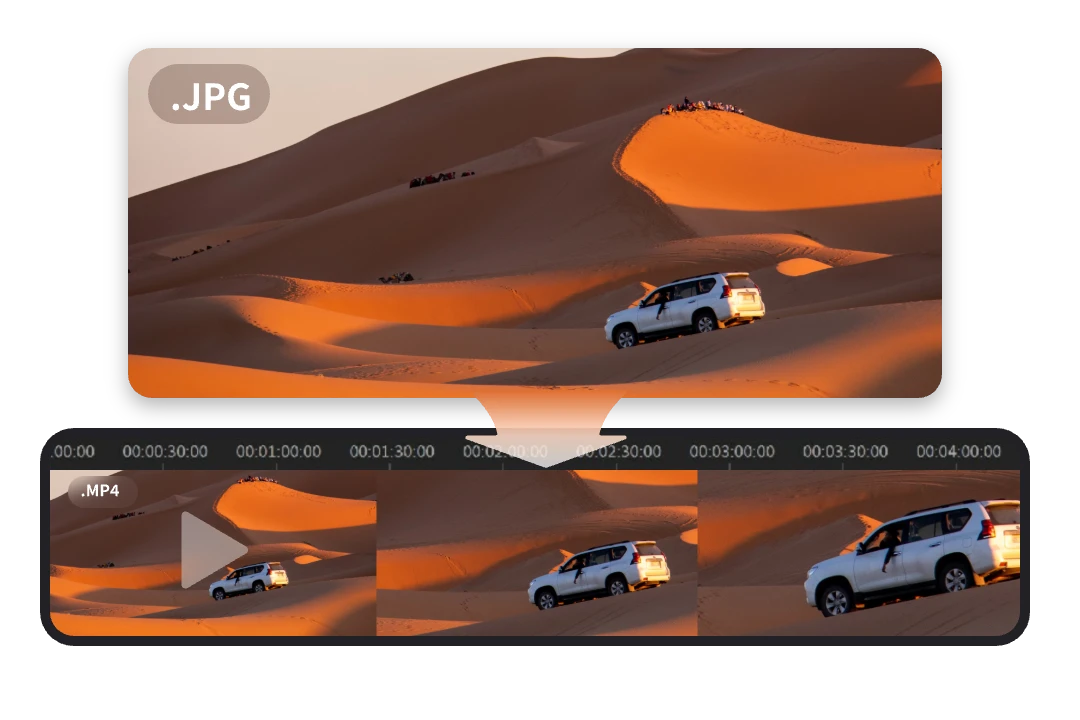
Works out the best push, pull, pan and tilt camera move for a still image and renders it as a video
Learn moreSmart Collage
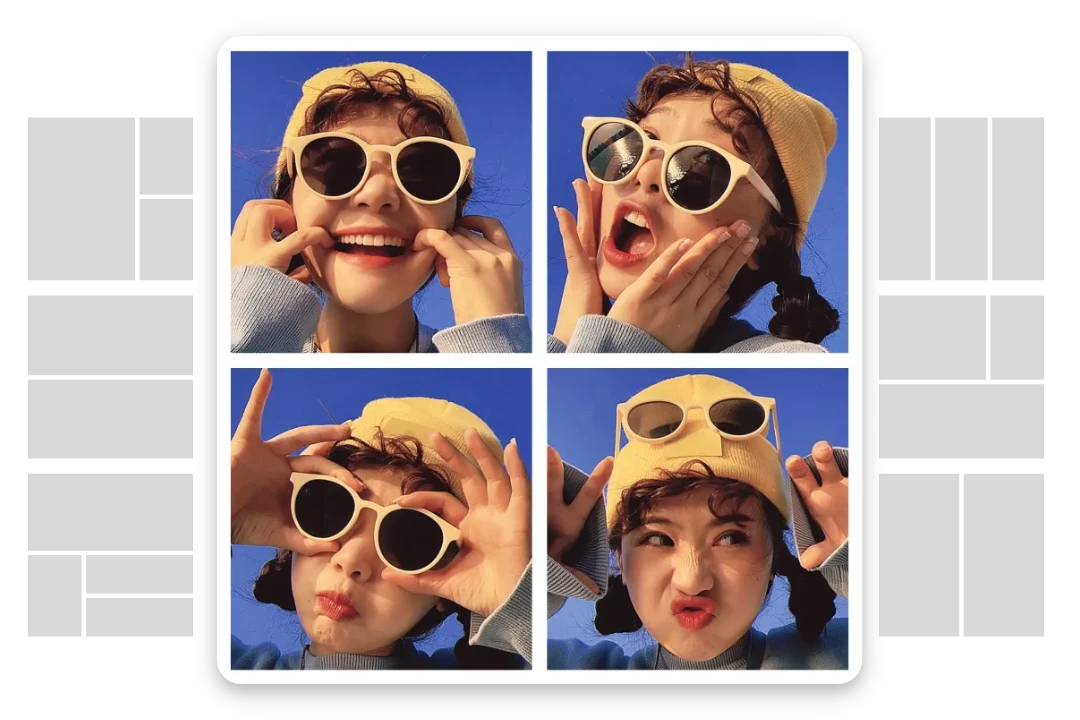
Feed in several images plus a title and subtitle; the best collage layout is computed for you and rendered as a polished graphic
Learn moreImage to Live Photo
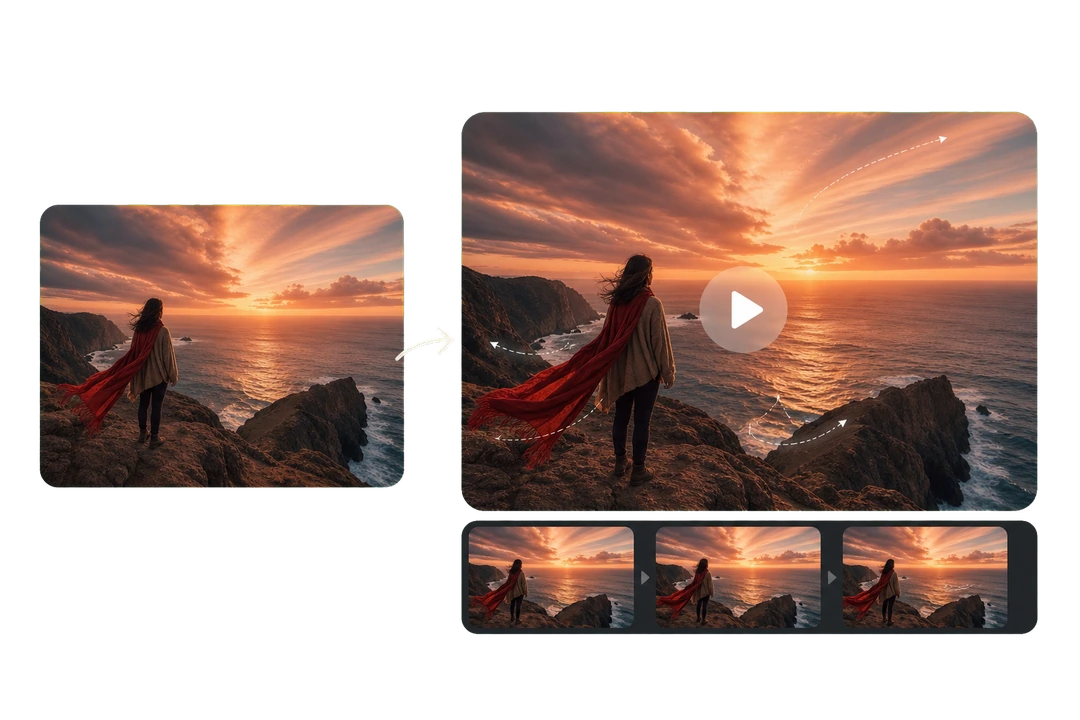
Turn a still image into a short video with natural micro-motion, adding life and depth to the original scene
Learn moreLong-to-Short Pro
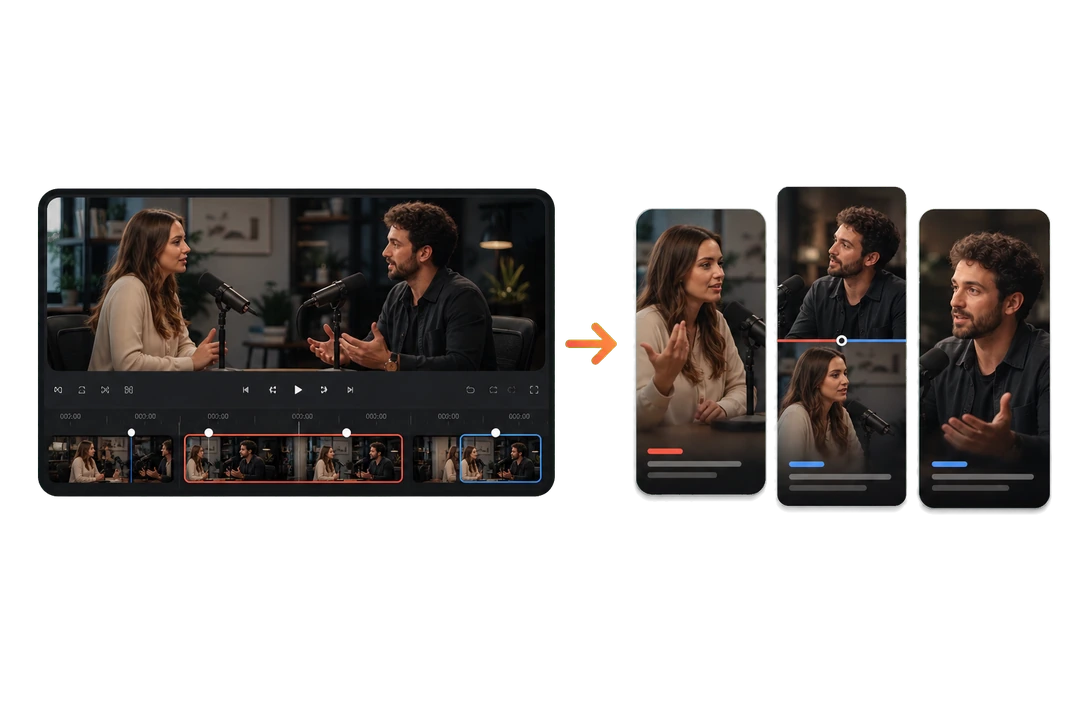
Extract multiple topical highlights from long videos and automatically add reframing, subtle camera motion, pacing and smart subtitles
Learn moreSmart Talking-Head Edit
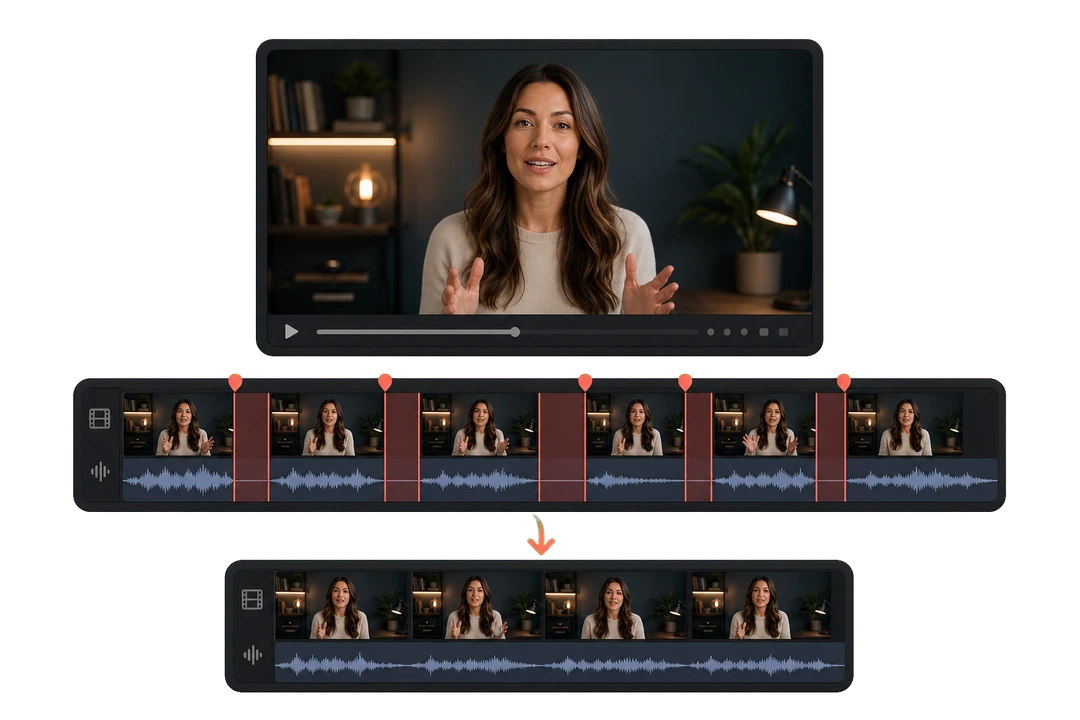
Remove mistakes, repeated takes and long pauses, then reshape pacing from the script to produce a fluent talking-head video
Learn moreSemantic Shot Segmentation
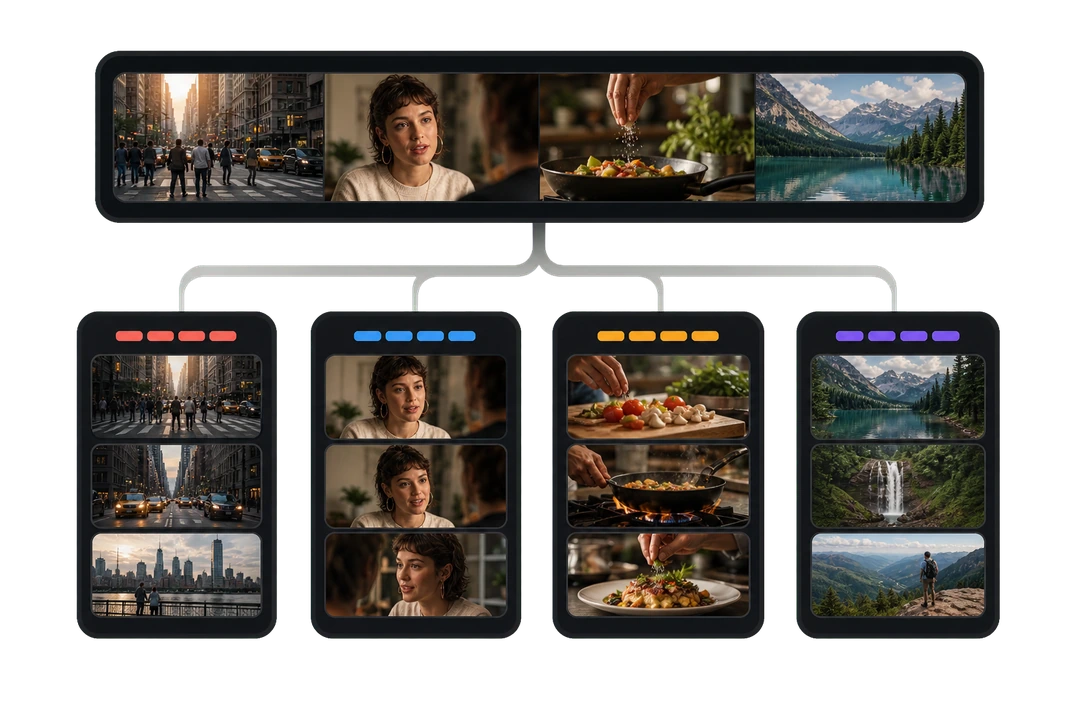
Use multimodal understanding to segment and organise shots by scene, shot type, narrative structure or subject
Learn moreSmart Split-Screen Layout
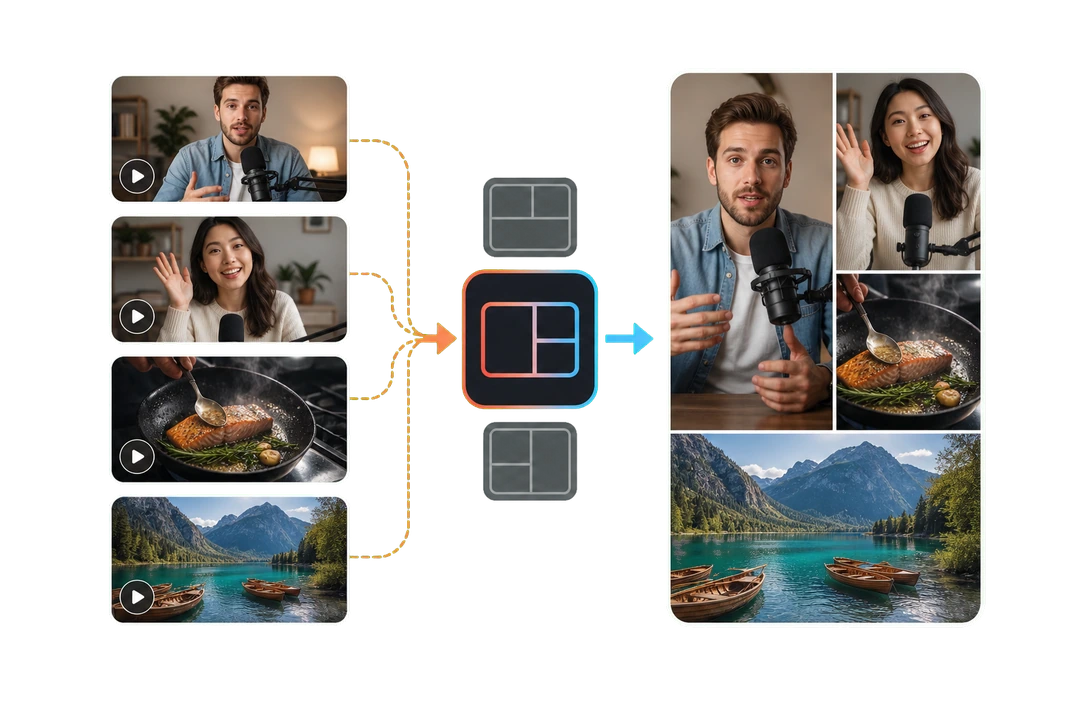
Crop and arrange 2–16 clips into reviewed split-screen templates for landscape, portrait or square output
Learn moreVisible Speaker Detection
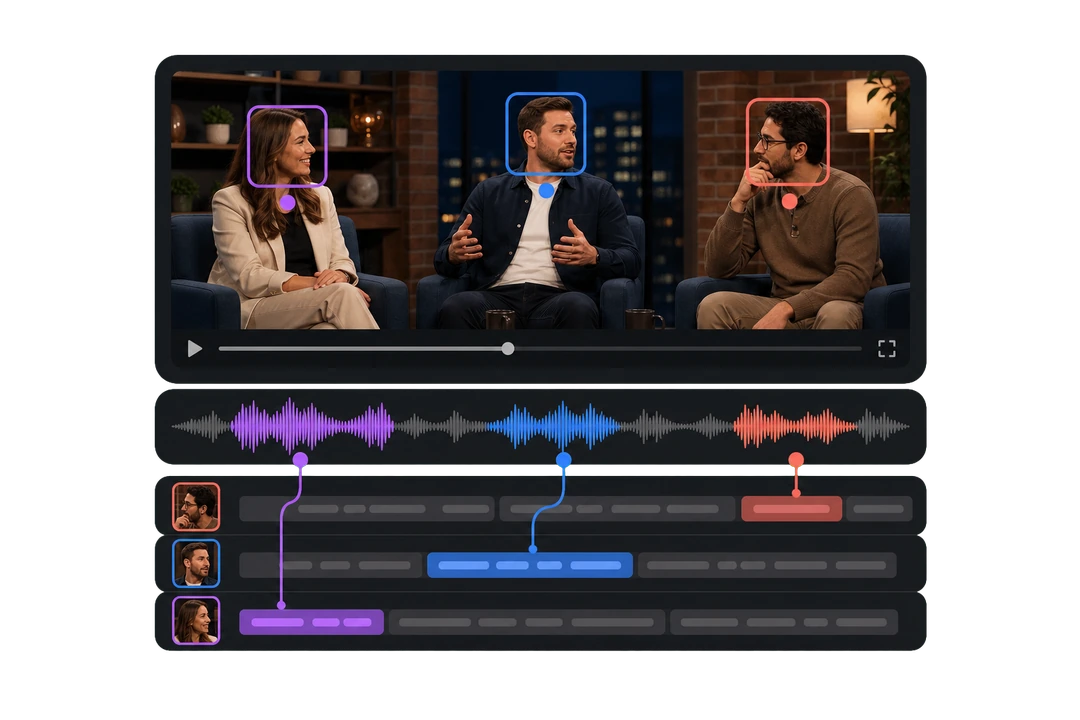
Combine speech recognition, visual tracks and sentence attribution to identify visible speakers and map dialogue to each person
Learn moreHTML Animation Compositing
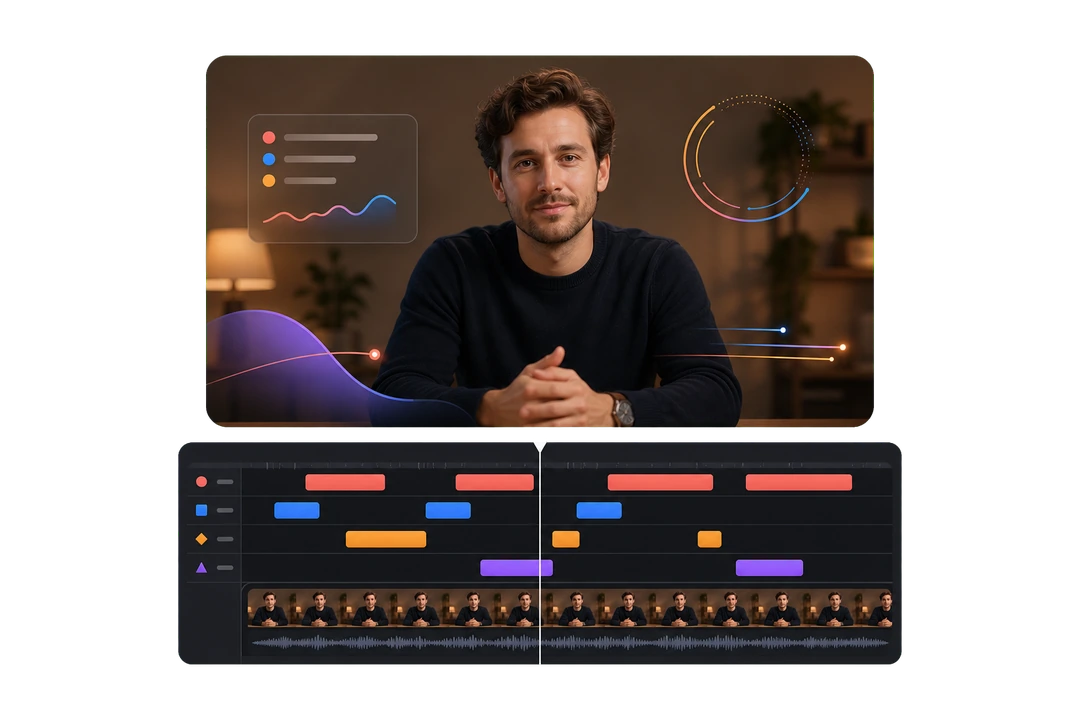
Overlay frame-seekable transparent HTML animation particles on a video track and render the complete composition directly
Learn moreMusic Visualiser
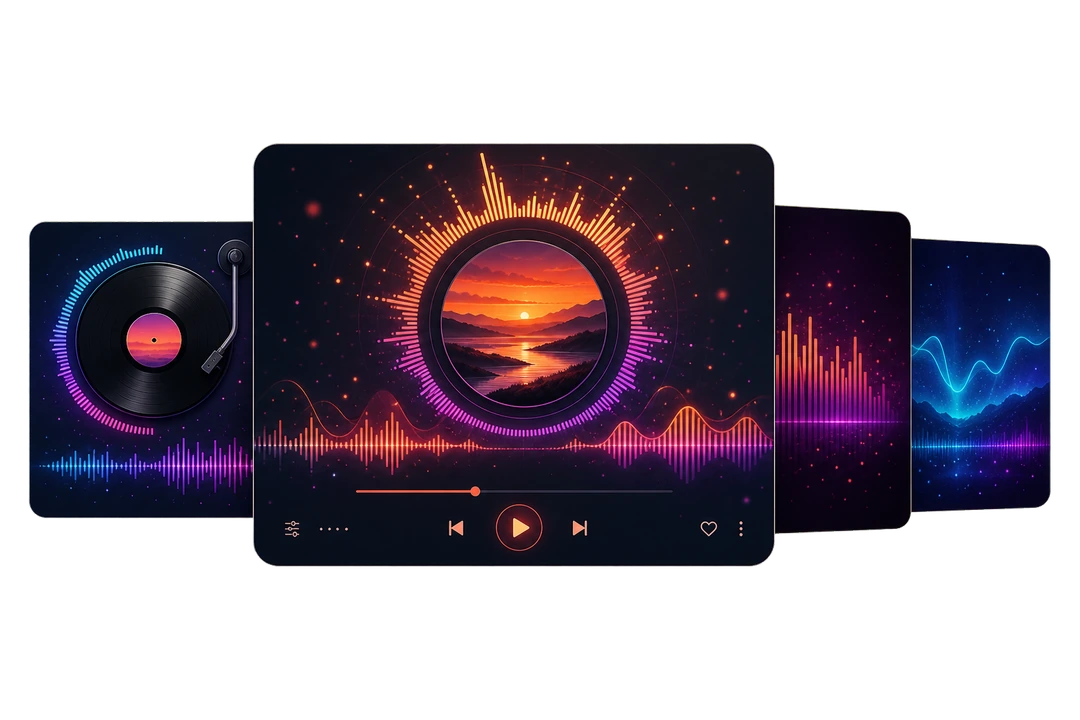
Analyse audio frame by frame to drive spectrum, waveform and cover animation for polished music-release videos
Learn moreVocal & Instrument Separation
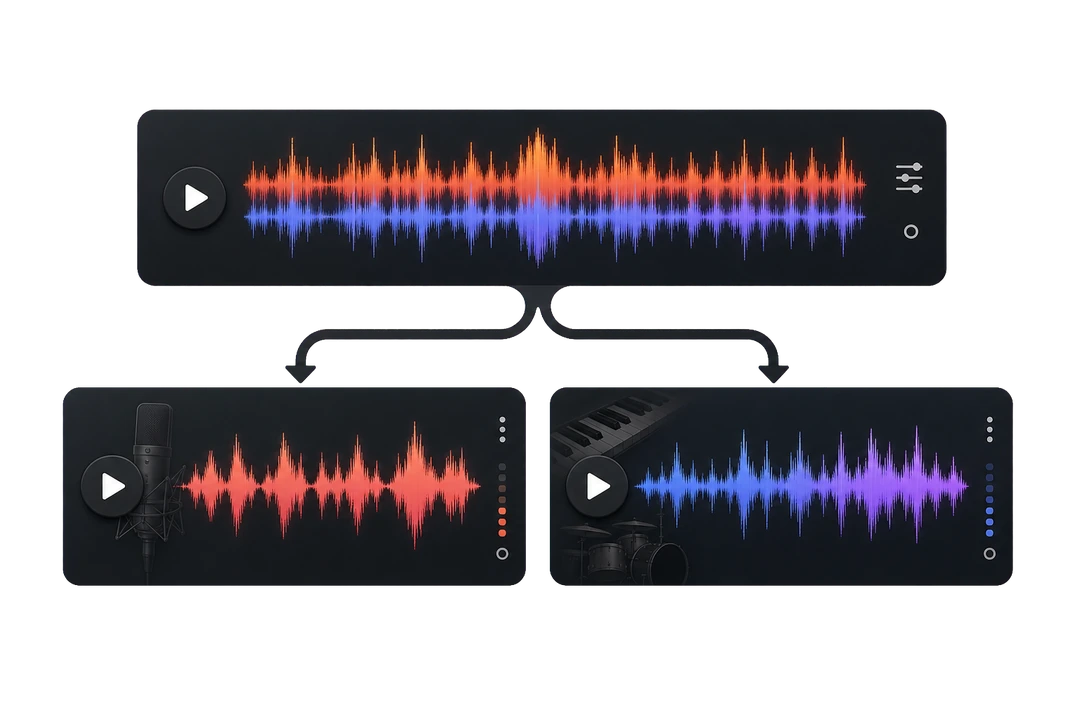
Separate vocals and accompaniment from a mixed recording and export high-quality tracks for independent use
Learn morePiano Audio to MIDI
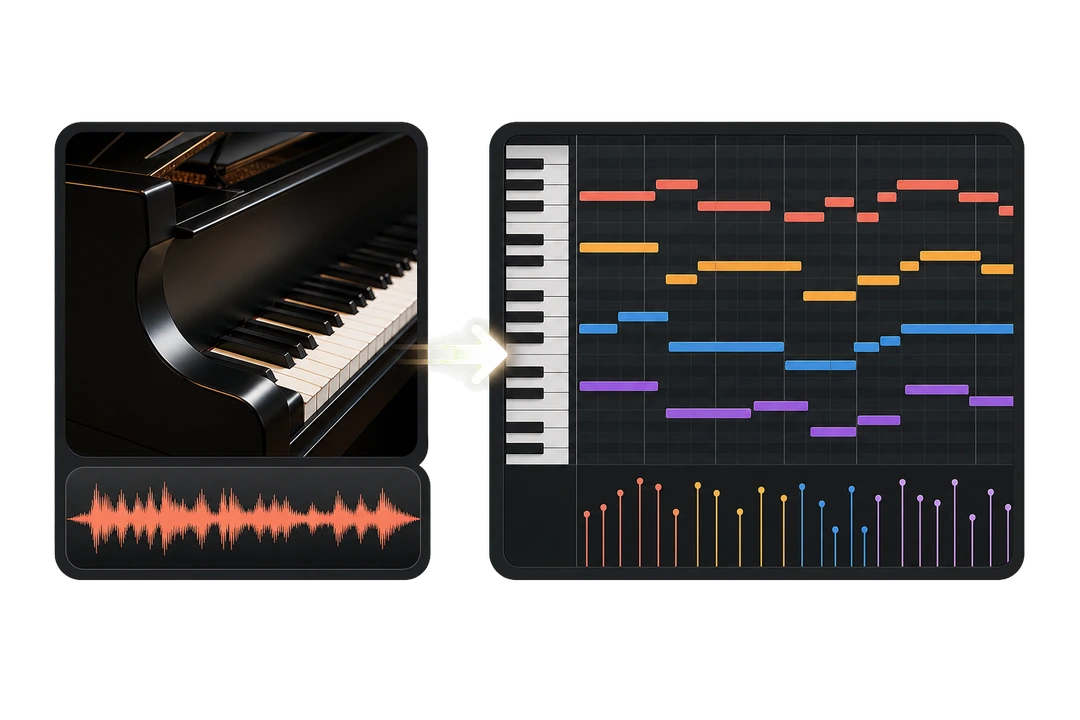
Transcribe solo or piano-led audio into MIDI for arrangement, score production, education and reuse
Learn moreVaporwave Filters
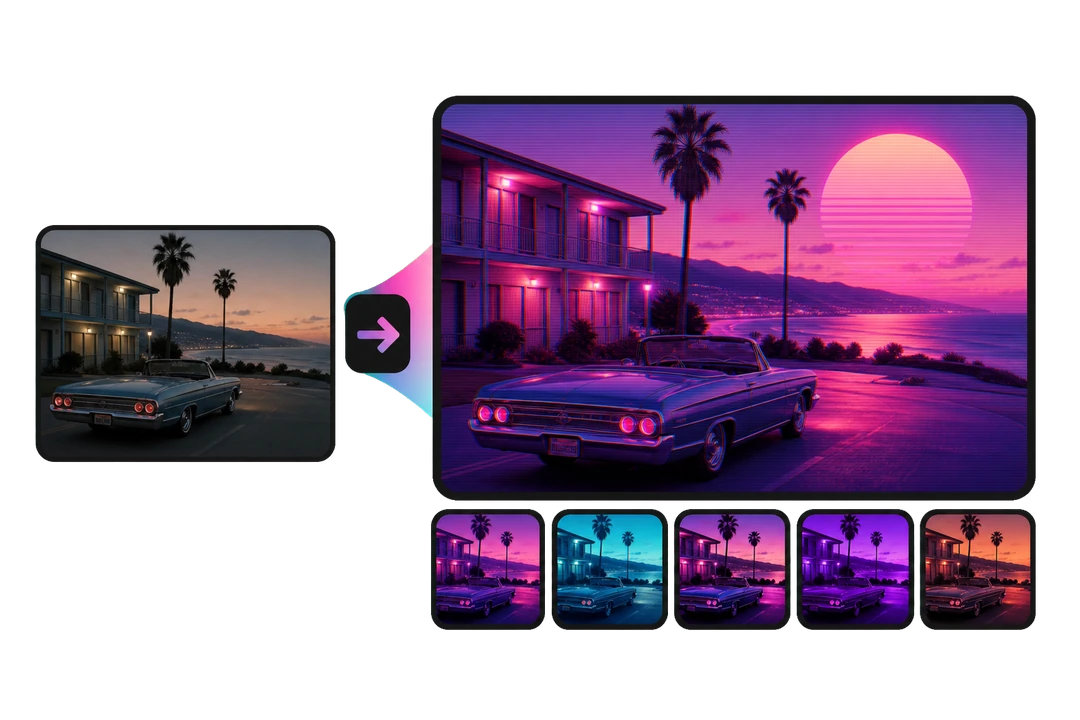
Apply reusable retro cyberpunk colour treatments and a distinctive Vaporwave texture to video footage
Learn more


GET STARTED
Three steps to your first conversation
- 01Copy the install prompt to your AI
Copy this prompt, paste it into Claude Code, Cursor or Trae and send it; the agent installs the CLI, config and skills for you. No commands to type.
- 02Restart your AI tool
Restart Claude Code, Cursor, Trae or similar so it picks up the new skills. Skip this if you only use the client's built-in AI.
- 03Say what you need
Type /gtrk-oralcut plus your request in your agent, or pick a blueprint in the client's AI chat; the AI does the rest.
Chat right in the client, or in your own agent
The client has built-in AI chat: sign in, open the AI chat, pick a blueprint or just describe the edit. The AI works through it step by step, stops to ask you at the key points, and bills credits for what it actually uses. Prefer Claude Code, Cursor or Trae? Keep talking there; the agent builds and changes the project through gtrk. Both work on the same project, which you preview, tweak and export in the client.
- Chat in the client Open the client's AI chat, pick a blueprint (talking head, voiceover, narration, vlog…) or just say what you want.
- Or chat in your agent Call a gtrk skill in Claude Code, Cursor or Trae with your own model; the project still refreshes in the client.
- Preview, tweak, export Check it and fine-tune by hand; keep talking if it's not right, then export the video or a CapCut / Premiere project.
One screen of the client's built-in AI chat: “Pick a blueprint to start”. 16:9, ≥ 1600px wide, webp.
public/gtrk/slots/agent-conversation.webpIN PRACTICE
Built around real workflows
 01 / 09
HDPAII (Data-driven Marketing Agency)
Use case: Douyin cultural-tourism livestream enablement. Powered by Gitruck Cloud's Intelligent Live Assistant, AI was embedded into livestream operations to deliver rich non-real-time synchronized scenes and solve user churn caused by outdoor network instability. GMV increased 143% YoY, product mix growth exceeded 200%, and overall ROI improved by 36.4%.
FAQ
Before you get started
Setup & pricing
I can't type commands at all. Can I still use it?
Yes. Download the client, sign in and describe what you want in the built-in AI chat; you never type a command. The command line exists for the AI and for advanced users.
Does it cost money?
Sign in on the site to activate it, with free test credits included. Image and video matting and one-click MAD are free for users; tools such as image motion cost credits, and the AI tells you the price before running. The client's built-in AI chat bills credits for what it actually uses; with your own agent, the model is on your own account. Fine-cut packaging is baked locally on your computer, and baking is free.
Is the client Windows-only?
For now, yes; a Mac build is planned. The CLI is cross-platform: install it on macOS or Linux and your agent still produces projects, exported to CapCut or Premiere for the fine cut.
Can I chat with the AI right in the client?
Yes. The client has built-in AI chat. Pick a blueprint (talking head, voiceover, narration, travel, food, vlog, livestream clips, or one you design with the AI) and it works through it step by step, stopping to ask you at the key points; or just tell it what to change. It bills credits for actual use and shows an estimate before making motion graphics or composites. Prefer Claude Code, Cursor or Trae? Keep using your own agent; it edits the same project.
It won't connect, or something errored. What now?
Tell the AI to run a check-up. It runs gtrk doctor, which verifies config, cloud connectivity, the CapCut draft folder and versions in one go, and tells you where it's stuck.
How do I upgrade?
Say “upgrade gtrk”. It upgrades the CLI and refreshes the skills, keeping your config. With npx you're always on the latest version anyway.
Editing & projects
Will my original footage be uploaded?
Project-based editing keeps the source video local. By default only the extracted audio goes up, and a compressed proxy when needed; the project references local file paths. Tools that need cloud rendering, such as the long-to-short fine cut, do upload video; see each tool's notes.
Where do I open the resulting project?
The output folder contains client, CapCut and Premiere projects. The CapCut draft is placed in your draft folder automatically; open CapCut and it's there.
How long does one video take?
Quick mode turns a one-minute talking head into a finished piece in about 7 minutes; the full run (talking head, B-roll, motion graphics, subtitles and covers) was recorded at 54 minutes. Most of that is cloud rendering and retrieval; you only describe what you want.
Can it use my own footage library?
Yes. One sentence searches your library or public stock semantically, lays the candidates into the project, and you flip between them with the eye toggle. Local footage only uploads sampled frames; the files never leave your machine.
Can I change subtitle styles and fonts?
Seven subtitle styles match the cloud presets, fonts install with one click inside the app, and subtitles travel intact into the CapCut export, where you can keep editing them.
Does it do vertical video?
Yes. Long-to-short renders a landscape and a portrait version, one text template fits both orientations, and the full run ends with covers in three sizes.
Start with your first video
Download the client and tell its built-in AI what you want to edit, or send the install prompt to your own AI assistant.